some wordsStyling content presentation through the arrangement of blocks and layers.
Content Block
name
Outcome
rich-link-hovers
true
id
1042866408
class
tight manual-outcome-flex
copied over:
Layers and content blocks can be positioned by adjusting margin settings. Their content can be manipulated visually using padding.
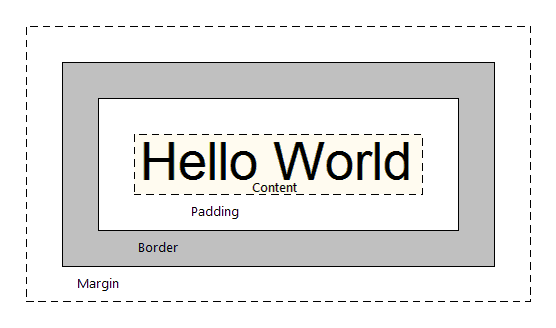
Theme Press layers and content blocks follow the CSS box model.
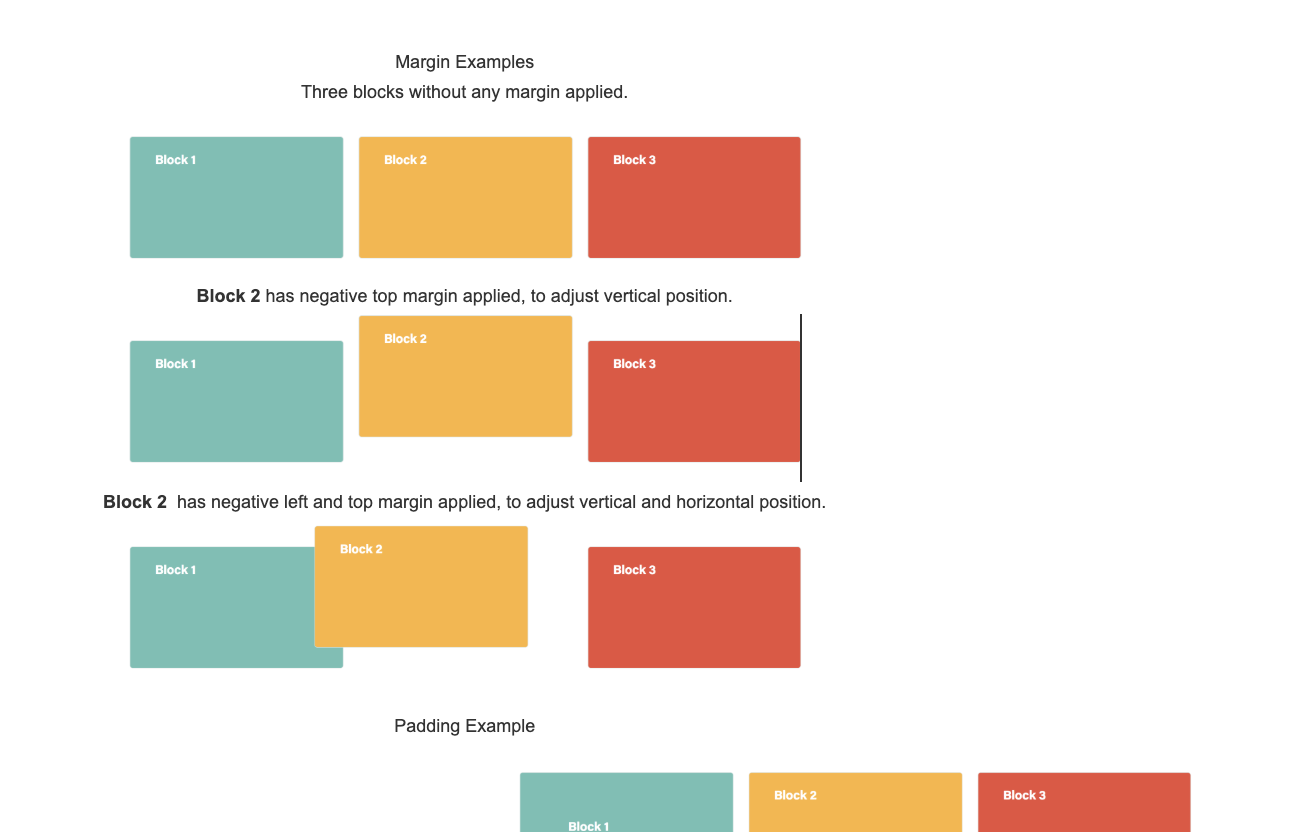
Padding, border, and margin can all be adjusted within the designer without having to manipulate CSS. Negative values can be applied to the margins to move the element itself and the following content. For example, if a -20px top margin is applied, that will move the element 20px towards the top of the page. A bottom margin of -20px will move content following that element 20px closer vertically. You can use padding to position content within a block by adjusting the distance that content resides from the edges of the container.
CSS Box Model
Image Removed
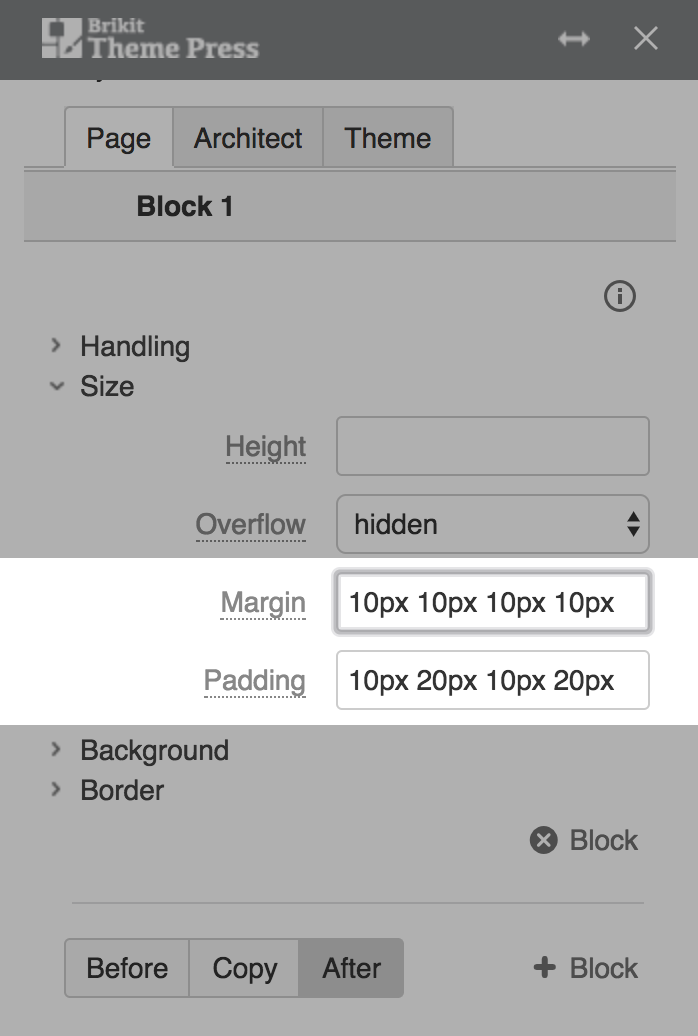
Adjusting Margin
Image Removed
NOTE: THIS NEEDS TO BE REPLACED WITH OUR OWN CONTENT - taken from other source.
CSS Shorthand Syntax
When entering pixel amounts for margins, padding, or spacing, there are four different ways to enter the amounts.
Image Removed
The 1-value syntax
margin: 10px
The unique value represents all edges
Image Removed
The 2-value syntax
margin: 10px 20px
The first value represents the vertical, that is top and bottom, edges, the second the horizontal ones, that is the left and right ones.
Image Removed
The 3-value syntax
margin: 10px 20px 30px
The first value represents the top edge, the second, the horizontal, that is left and right, ones, and the third value the bottom edge
Image Removed
The 4-value syntax
margin: 10px 20px 30px 40px
The four values represent the top, right, bottom and left edges respectively, always in that order, that is clock-wise starting at the top (Nemonic memory trick: the initial letters of Top-Right-Bottom-Left match the order of the consonants in the word trouble: TRBL)
Values applied using 4-value shorthand syntax
consider adding examples such as following:
Image Removed
Options in the Page Designer for sizing both margins and padding allow for fine-tuning of page designs, and customizing alignment without needing to add custom code.
Content Block
name
Steps
rich-link-hovers
true
id
494842117
class
steps-block numbered manual-steps-flex
Click on a block or layer in the Page Designer.
Open the Size Expander
Use h4 for section headings
If you don't want numbers in the section headings, simply remove the "numbered" class from this block.
Note/Tip/Warning/Info blocks below are collapsed by default. If you want to use any of these, try to keep to just one per page. You may use two if necessary, but in general, try to limit these
.
Content Block
name
Note
rich-link-hovers
true
id
495965127
class
manual-note-flex
collapsible
collapse
Note
If using:
Replace me with something to note about this how-to entry that falls outside the scope of all other sections; and
Add the tight-bottom class to the Steps block above to narrow the gap between the two blocks.
Content Block
name
Tip
rich-link-hovers
true
id
894522670
class
manual-tip-flex
collapsible
collapse
Tip
If using:
Replace me with something to note about this how-to entry that falls outside the scope of all other sections; and
Add the tight-bottom class to the next visible/non-collapsed block above this one to narrow the gap between the two blocks.
Content Block
name
Warning
rich-link-hovers
true
id
894530759
class
manual-warning-flex
collapsible
collapse
Warning
If using:
Replace me with something to note about this how-to entry that falls outside the scope of all other sections; and
Add the tight-bottom class to the next visible/non-collapsed block above this one to narrow the gap between the two blocks.
Content Block
name
Info
rich-link-hovers
true
id
894537203
class
manual-info-flex
collapsible
collapse
Info
If using:
Replace me with something to note about this how-to entry that falls outside the scope of all other sections; and
Add the tight-bottom class to the next visible/non-collapsed block above this one to narrow the gap between the two blocks.
Content Layer
background-color
$lightGrayColor
name
Related
id
888168050
Content Column
name
Related
width
100%
id
888168051
Content Block
rich-links-hide-description
true
rich-link-hovers
true
rich-links-columns
4
rich-links-vertical
true
rich-links-image-height
100px
rich-links-hide-site-icon
true
rich-links-details-padding
10px
name
Related
rich-links-enable
true
border-width
0
rich-links-details-alignment
left
rich-links-margin
20px 30px 0 0
id
496234544
class
related-block clean manual-related-flex
Replace me with a link
Replace me with a link
Aim for 4 or fewer related links. If we need more, that's okay. Be judicious. Delete me when you're done.